

Home / Stories / UniFi + Networking
UniFi AI Port: adding face and plate recognition to older cameras
Ubiquiti's AI Port adds face recognition, license plate recognition and smarter detections to cameras that never had them, including ONVIF cameras. I set it up with a G5 PTZ and a G5 Flex.

Jesse Nowlin
Founder, TABGEEKS · · 4 min read
2024 was clearly the year of AI for Ubiquiti, with features like facial and license plate recognition. Unfortunately, a lot of older UniFi cameras, plus the ONVIF cameras Protect now supports, were left in the dust. The new AI Port is designed to fix that. I've been calling it a way to "AI-ify" your non-AI cameras. That's my word, not Ubiquiti's.
I unboxed it, adopted it in Protect and paired it with a G5 PTZ and a G5 Flex. Setup is quick, but there's one setting you have to change or the whole thing does nothing.
The bottom line: with the promised update to support multiple cameras per AI Port, this becomes a very attractive way to keep older cameras in service instead of replacing a whole fleet at once.
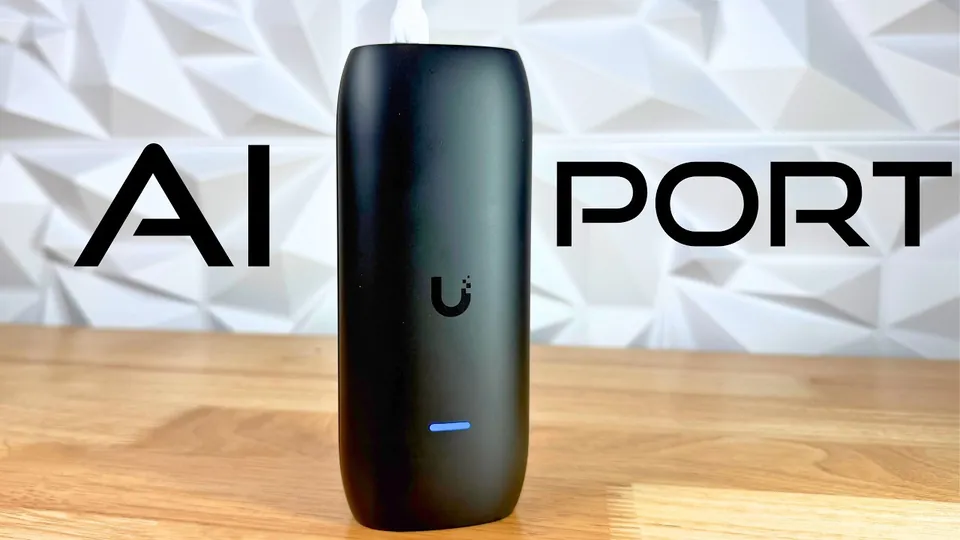
Prefer to watch? The full video is right here. 5:45 · Watch on YouTube
Jump to a section in the video
The hardware
The AI Port has two Ethernet ports on top, one in and one out, because it's also a PoE injector. It can output up to 25.5 W if you feed it with PoE++. It also has a microSD card slot for edge recording.
Also in the box: the installation guide, Ubiquiti's mounting template, regulatory materials, a mounting screws package and a wall mount, which is handy if you want to put it right next to a camera. The mount screws into the wall and the unit clicks on and off easily. Ubiquiti even includes two zip ties color-matched to the unit.
Inline or anywhere on the network
Plug PoE-powered Ethernet into the PoE input, and you get a light on the face of the unit plus blinking network lights on top. If you want it to power a camera too, plug your older camera into the second port.
You don't have to put it inline, though. You can plug it in anywhere on the network, then assign it to the camera you want to enhance in Protect's settings. Running it inline is just an option if you want it to power the camera. That gives you flexibility in where you put it.
One camera at launch, more coming
This is the critical detail that changes the whole conversation. At launch it was announced as one to one: one AI Port for one older camera. Ubiquiti has since confirmed that a future update will let a single AI Port handle more.
Planned AI Port camera support
| Camera type | Cameras per AI Port |
|---|---|
| Non-AI Ubiquiti cameras | Up to 5 |
| 2K ONVIF cameras | Up to 2 |
| HD ONVIF cameras | Up to 3 |
As confirmed for a future update at the time of the video, December 2024.
You can't mix and match. Ubiquiti cameras need their own AI Port and ONVIF cameras need another. It also isn't compatible with cameras that already have AI, for obvious reasons. And at launch, the microSD edge recording wasn't functional yet. It was slated to be turned on in a future update.
Five cameras per unit is a big deal for anyone with older Ubiquiti cameras that still work. You can add AI now and replace cameras over time as they die. It also matters for small businesses with typical off-the-shelf camera systems, since they can bring two or three of those cameras on board at a time, depending on camera quality.
What it detects
The AI Port detects motion, people, vehicles, animals and speech. It can classify vehicle type and color, and it adds face and license plate recognition. It works with Ubiquiti's PTZ cameras, including the G5 PTZ, and it even supports PTZ controls for ONVIF PTZ cameras, which I saw asked about in YouTube comments all over the place.
Setting it up in Protect
Once adopted, the AI Port's page shows the paired camera, its status, the switch it's connected to (in my case a Pro Max 48 PoE), device version, MAC address, IP address and uptime. Settings let you rename, locate, restart or remove it.
The paired camera gets an AI symbol and an "AI enhanced by AI Port" label. To change it, go into the AI Port's settings and hit Manage under Paired Camera. Unassigning a camera restarts that camera during the switch.
“Make sure that you go down and edit the video detection types. Otherwise, you're just going to have a $200 device doing absolutely nothing.”
I messed this up at first. After you pair it, edit the camera's detection types and turn on face and license plate. Once I did that on the G5 Flex, the detections showed my face, goofy expression and all.
Bottom line
The AI Port was $199 at launch, and for one camera that's a fair ask. The multi-camera update is what makes it compelling: up to five older Ubiquiti cameras on one unit is far cheaper than replacing them. If you have working non-AI or ONVIF cameras and want face and plate recognition, this is the way to get there. Just don't forget to turn on the detection types.
Gear in this story
- UniFi AI PortSpecs and compare for UniFi AI PortUbiquiti Store (opens in a new tab)
- Camera G5 PTZSpecs and compare for Camera G5 PTZUbiquiti Store (opens in a new tab)
- Camera G5 FlexSpecs and compare for Camera G5 FlexUbiquiti Store (opens in a new tab)
- UniFi Pro Max 48 PoESpecs and compare for UniFi Pro Max 48 PoEUbiquiti Store (opens in a new tab)
Ubiquiti Store links are affiliate links. If you buy through them, the channel may get a small commission at no extra cost to you. Affiliate disclosure
Related stories

Ubiquiti's surprise holiday sale: the UniFi deals I picked out
Dec 10, 2025 · 3 min read
UniFi AI Turret review: 4K, plate and face recognition, and microSD edge recording
Dec 13, 2024 · 4 min read
UniFi Device Bridge: wireless PoE for a camera with no cable run
Nov 29, 2024 · 3 min read
Jesse Nowlin
Founder of TABGEEKS, former IT Director and Google Developer Expert. I test networking and pro tech on real job sites, then write up what I find.
Join the community