

ORICO OBOOK 15 AI review: finally, a Windows laptop with no bloatware
ORICO's 15.6 inch AI laptop ships with almost nothing preinstalled. I set it up, tested Wi-Fi, battery and its AI agent app, and edited video in Premiere Pro on it.
Jesse Nowlin
Founder, TABGEEKS · · 4 min read
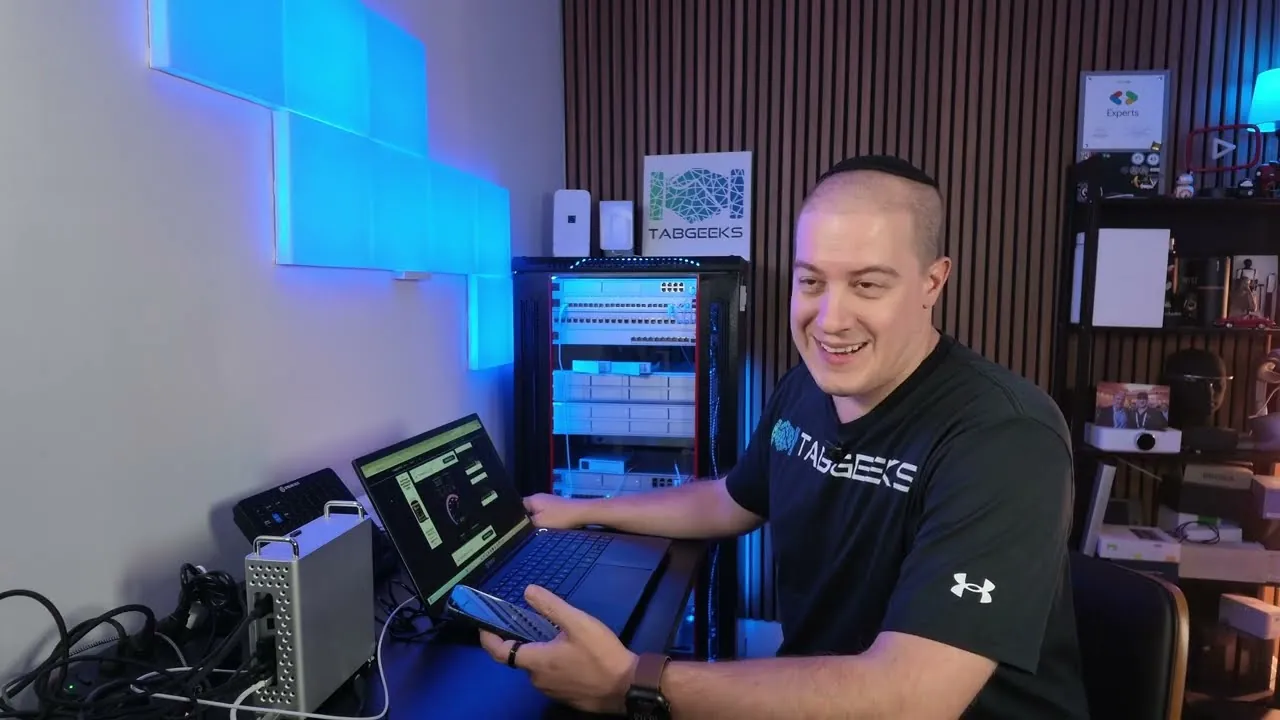
The first thing I noticed about the ORICO OBOOK 15 AI laptop was what wasn't on it. No antivirus trial, no preloaded games, no marketing junk. Just one ORICO app and AMD's own driver software. It is the cleanest new Windows install I have ever seen, and I didn't even have to sign in to get through setup.
ORICO has been a fixture on my desk for a while, since they sent over the tiny Mac Pro style case my Mac Mini lives in. When they offered to send their new laptop for review, I had to see it. I unboxed it, set it up, and ran it through daily browsing, a Wi-Fi speed test, the ORICO AI agent app, battery testing and a Premiere Pro edit. Bottom line: for the price, it is a very good deal.
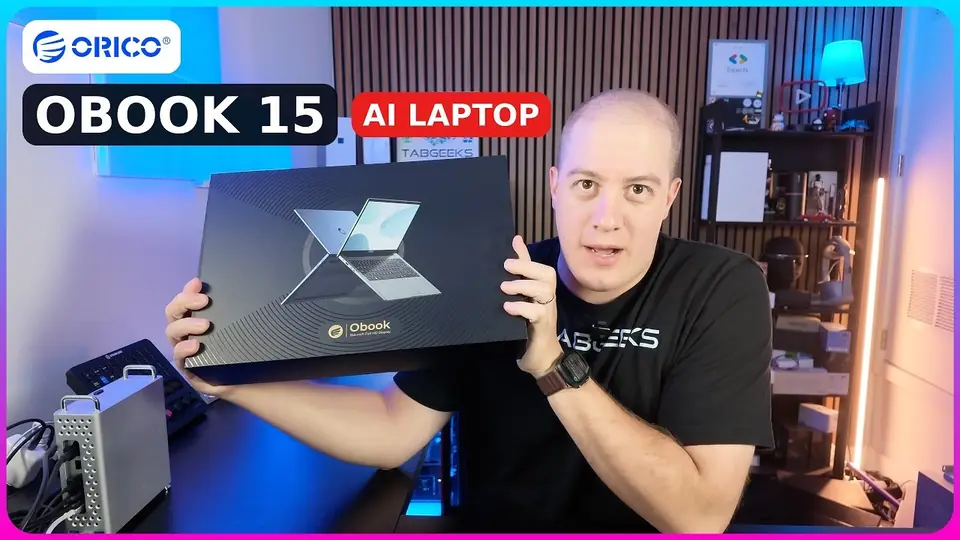
Prefer to watch? The full video is right here. 14:57 · Watch on YouTube
Jump to a section in the video
Hardware, ports and what's in the box
Mine is the blue model, and it looks great under studio lighting. It is plastic, and you can feel that, but it is not trying to be a MacBook Pro. I'm happy with it.
ORICO OBOOK 15 AI as tested
| Spec | What I tested |
|---|---|
| Processor | AMD Ryzen 7 6800H |
| Memory | 24GB DDR5 |
| Storage | 1TB SSD, two M.2 PCIe slots |
| Display | 15.6 inch, 1920 x 1080, 60Hz, matte |
| Wireless | Wi-Fi 6 |
| Webcam | 1 megapixel, with privacy shutter |
| Right side ports | DC in, USB-C (PD 3.0, 10Gbps, DisplayPort 1.4), HDMI 2.0 |
| Left side ports | Two USB-A (one 5Gbps, one 480Mbps), headphone jack |
| Extras | Fingerprint sensor up top beside the power button, full keyboard with number pad |
In the box you get a beginner's guide, in Chinese and English, and a power adapter with a DC plug. I wish charging were USB-C. I like to carry as little as possible, so I plan to see whether I can charge it over USB-C exclusively.
Setup and the settings I change first
The hardest part of setting up any Windows laptop is that it takes forever, and this was no exception. Surprisingly, Microsoft didn't make me create a password.
My routine on any new Windows machine: brightness all the way up, power mode off Balanced and onto the highest performance setting, even on battery. Then I fix the trackpad so it scrolls the way I want and speeds up. Then I change the display scale. Windows defaults a 1920 x 1080 screen to 125%, and I will never understand why. At 100% I actually have room to work.
The ORICO AI app
The one app ORICO did include is its AI assistant, and it turns out to be an OpenClaw agent wrapped in ORICO's own interface. There is a model picker with a long list of options, including Claude, Gemini 3.5 Flash, GPT 5.5 and DeepSeek, plus Kimi, MiniMax and Qwen. There is also an agent store with ready-made agents like a social media strategist, paper research, a briefing agent, software development, stock research and an office co-pilot. It can connect to Telegram, WhatsApp, Discord and WeChat.
I asked it to make a review thumbnail without giving it much to go on. It did a pretty decent job, with the correct specs on it. A little text overlap, and it made it 1280 x 720 rather than 4K, but I understand that choice.
Daily performance and Wi-Fi
With six tabs open, including Gmail, YouTube, a few articles, Gemini and Grok Bot, plus Task Manager, I was using 47% of my RAM and about 10% of the CPU. Chrome gets power hungry, and I felt a jitter once in a while compared to a much more powerful computer, but the Ryzen 7 is holding its own. I was streaming in 4K the whole time without noticing a problem.
The Wi-Fi speed test came in at 353 down and 326 up. My iPhone 17 Pro Max on Wi-Fi 7 pulled much faster numbers from the same access point, and that is the difference between Wi-Fi 6 and Wi-Fi 7 chipsets. Still a very solid, usable speed.
Battery, speakers, screen and keyboard
Battery life depends on what you are doing, but with video playback and other light use it hovered around 5 to 6 hours. That is respectable. Performance on battery was good too. The fans do spin up and you can hear them.
The speakers are decent, not phenomenal. The keyboard is nice to type on, with a springy feel, and while the number pad is a bit cramped, I like having one for spreadsheets.
The matte display is one of my two favorite things about this laptop. My bright studio lights didn't show up on the screen at all. Even a 1,600 lumen flashlight only reflected when I pointed it straight at the screen. Light from the side or above didn't register.
“I love matte screens. I feel like everything should have a matte screen.”
Editing video in Premiere Pro
Because I am really mean to my devices, I opened Premiere Pro. It started to strain a little, which is understandable given how heavy Premiere is. Playing back at full resolution, RAM peaked around 19.4GB of 24GB while CPU stayed at 20% or less. It kept editing.
Price and bottom line
At the time I tested it, the OBOOK 15 started at $689.99 for 12GB of RAM and a 256GB SSD. The configuration I tested was $899, down from $1,052.
Is it the most premium laptop of all time? No. Will it run the heaviest workloads? No. That is not what it is for. If you want a laptop that handles video editing, some AI work and your general workflow without breaking the bank, this is an excellent option. And thank you, ORICO, for leaving the crapware off. It has been a long time since I have seen a laptop maker do that. I hope it sets a precedent.
Gear in this story
- ORICO OBOOK 15 AI laptoplink.amazon (opens in a new tab)
- ORICO OBOOK 15 product pageoricotechs.com (opens in a new tab)
Some of these store links are affiliate links. If you buy through them, the channel may get a small commission at no extra cost to you. Affiliate disclosure
Related stories
DJI Osmo Nano unboxing and first look: a tiny camera with a lot in the box
Oct 1, 2025 · 4 min read
Aohi Starship 240W power bank review: laptop power in a soda can
Apr 2, 2025 · 3 min read
Don't film everything: my framework for covering tech conferences
Jun 12, 2026 · 6 min read
Jesse Nowlin
Founder of TABGEEKS, former IT Director and Google Developer Expert. I test networking and pro tech on real job sites, then write up what I find.
Join the community