

Home / Stories / UniFi + Networking
Moving 19 TB from the UNAS Pro to the UNAS Pro 8, then growing the pool to 56 TB
I finally moved my studio's 19 TB from the original UNAS Pro to the UNAS Pro 8. Here is the method Ubiquiti recommended, how long it took, what the SSD cache did, and how jumbo frames got me past 3 Gbps.

Jesse Nowlin
Founder, TABGEEKS · · 5 min read
I have wanted to make this video since the UNAS Pro 8 came out three or four months ago. I had one. I just didn't dare touch my original UNAS Pro, because it has become such a core part of my daily work. It was holding 19.62 TB on four 8 TB drives, and I needed a slow stretch in production before moving all of it.
I unboxed the UNAS Pro 8, migrated everything with the method Ubiquiti recommended, added SSD cache, expanded the pool to 56 TB, and tuned the network until a single large transfer broke 3 Gbps. The migration worked with only one hiccup, and the new box is noticeably faster at reading files back.
Prefer to watch? The full video is right here. 34:30 · Watch on YouTube
Jump to a section in the video
What's in the box and on the chassis
The UNAS Pro 8 is 2U and heavy, even without drives. In the box you get a cable, 2U rack ears, a big bag of screws, and, for the first time on a Ubiquiti unit I have reviewed, sliding rack rails. Up front are eight tool-free drive bays, up from seven on the original. You line the drive up with the connector facing outward and slide it in. There is a screw hole if you want extra security. The front screen is gone to make room for the eighth bay.
Around back is one 10 gig RJ45 port and two 10 gig SFP+ ports, two fans and, new for this line, a redundant power supply bay. It ships with one power supply, and a second one is $159 on the Ubiquiti store. A small drawer holds two M.2 NVMe slots. As far as I understand, those are cache only, not separate fast storage. It doesn't include the SSD sleds.
UNAS Pro 8 at a glance
| Feature | As stated |
|---|---|
| Size | 2U, sliding rails included |
| Drive bays | 8, tool-free |
| Networking | One 10 GbE RJ45, two 10 GbE SFP+ |
| Power | Redundant supply bay, one included, second $159 |
| Cache | Two M.2 NVMe slots, cache only |
| My final pool | Eight 8 TB 7,200 RPM drives, RAID 5, about 56 TB |
Setup
I used an SFP+ to RJ45 adapter from the Ubiquiti store so I could wire all three ports into my 10 gig switch. All three showed up at 10 gig. I loaded four new 8 TB 7,200 RPM drives and an old 512 GB SSD in one cache slot. One drive didn't show up because I had put it in backwards, after telling you to face the connector outward. Don't make that mistake.
Setup downloaded firmware, then I reformatted the SSD, which had UniFi data on it from another test, and created a RAID 5 storage pool with one drive's worth of protection. Before you click format, double, triple check that you are on the new unit. I checked about a million times.
The migration: site to site backup
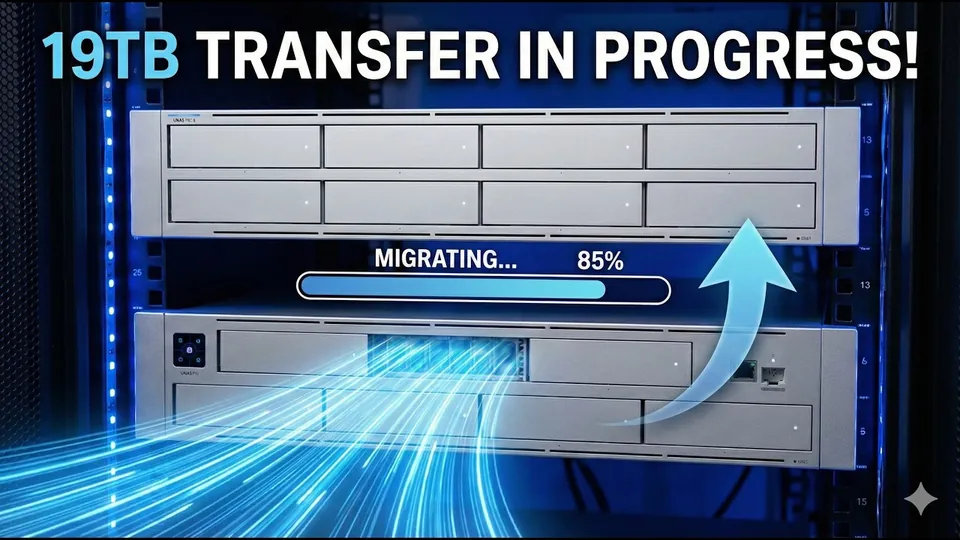
Ubiquiti's recommended approach is to set up both NAS units independently, then create a backup task from the old one to the new one so it syncs everything across. On the old NAS I created a backup task to the remote UNAS Pro 8, picked the destination folder, chose folder replacement since the new box was empty, and kicked it off manually at 2:08 PM.
It moved data in chunks at a few hundred megabytes per second and held roughly a gigabit per second throughout. Late that night it stopped, because the new unit auto-updated mid-transfer. I hit continue and it recovered and finished. Pro tip: turn off auto-update before any big migration.
In total it took a little under two days. Everything arrived with the same folder structure, but it landed inside one folder named after the backup task, so I had to move my shared drive folders and Time Machine back where they belonged. A backup and restore would have brought over identity, snapshots and settings, but the goal here was to show how easy it is to move data. The new unit's CPU ran hotter than the old one, likely because it was sitting on my desk instead of in the rack, and it has a more powerful processor.
“Pro tip, turn off auto update before you do any big, you know, migration like this.”
Read speeds and the SSD cache
From my Mac over 10 gig, copying a test set to each NAS took about the same, 10 minutes 22 seconds to the old one and about 10 minutes 30 to the new one. Copying back was different: 12 minutes from the old NAS, 7 minutes 41 seconds from the UNAS Pro 8. That is the cache at work, even with one small SSD.
Two SSDs are optimized for simultaneous read and write, so Ubiquiti sent me two 1 TB SSD sleds. I installed both, then, because I am paranoid, made a second full copy of all 19 TB from the new unit back to the old one on four more new drives. With the cache, that reverse backup flew at first, stalled for hours around 43 to 48%, likely on lots of small files, and still finished in 40.5 hours.
Expanding the pool: RAID 5 over RAID 10
With two complete copies of my data, I wiped the original four drives and added them to the UNAS Pro 8. I had planned on RAID 10 for speed, but I chose to expand in RAID 5. I lose a little speed, but I get 56 TB instead of half that, which leaves room to grow the studio's footage and use features like phone photo backup.
Breaking 3 Gbps
My 206 GB transfer test dropped from 11 minutes 49 seconds to 8 minutes 39 seconds, about 26.8% faster, or roughly 405 MB per second, 3.17 Gbps. Ubiquiti's support article benchmark is 637 MB per second, measured on a UNAS Pro with six 16 TB 7,200 RPM drives in RAID 10 transferring a single 10 GB file over SMB. A single big file benefits from burst, landing in cache instead of waiting on spinning disks.
Trying to match that setup, I turned on jumbo frames, which sends data in much larger packets with less processing overhead. That got me 3.09 Gbps, about 396 MB per second, on a single large transfer. You are not going to hit 10 gig from one computer. That bandwidth is for multiple machines saturating it at once.
| Test | Result |
|---|---|
| Migration, old to new | A little under 2 days, about 1 Gbps sustained |
| Reverse backup with SSD cache | 40.5 hours |
| Read back, old UNAS Pro | 12 minutes |
| Read back, UNAS Pro 8 | 7 minutes 41 seconds |
| 206 GB test, before and after | 11:49 to 8:39, about 26.8% faster |
| Single large file, jumbo frames | 3.09 Gbps |
| Ubiquiti lab benchmark | 637 MB per second (different setup) |
My studio network, my drives. Your results depend on drives, files and network.
Bottom line
The UNAS Pro 8 is probably overkill for a lot of people, but it has double the RAM, SSD cache, multiple 10 gig ports and room to grow, and I want to take advantage of all of it as the studio grows. The site-to-site backup method worked nearly perfectly. Just turn off auto-update first, keep a second copy of your data before you wipe anything, and add both SSDs if read speed matters to you.
Gear in this story
- UNAS Pro 8Specs and compare for UNAS Pro 8Ubiquiti Store (opens in a new tab)
- UNAS ProSpecs and compare for UNAS ProUbiquiti Store (opens in a new tab)
- SFP+ to RJ45 AdapterSpecs and compare for SFP+ to RJ45 AdapterUbiquiti Store (opens in a new tab)
Ubiquiti Store links are affiliate links. If you buy through them, the channel may get a small commission at no extra cost to you. Affiliate disclosure
Related stories

Ubiquiti's surprise holiday sale: the UniFi deals I picked out
Dec 10, 2025 · 3 min read

UniFi U7 Mesh tested: how far can a Wi-Fi 7 mesh link go?
Mar 2, 2026 · 4 min read

Powering a Starlink Mini from a UniFi Cloud Gateway Industrial
Mar 2, 2026 · 2 min read
Jesse Nowlin
Founder of TABGEEKS, former IT Director and Google Developer Expert. I test networking and pro tech on real job sites, then write up what I find.
Join the community