

Home / Stories / AI at work
GitHub not showing up in Gemini? Here are the admin settings to fix it
If Gemini's connected apps list only shows SynthID, the problem is in your Workspace admin settings. Here are the three places to check, in order.

Jesse Nowlin
Founder, TABGEEKS · · 2 min read
You open Gemini, start a new chat and want to work with GitHub. You go to Settings on the left, open Connected apps, scroll down, and GitHub is not there. Neither are HubSpot, Asana, Mailchimp or Salesforce. Maybe the only thing you see is SynthID.
This question came to me from close to home, and I turned to friends in the Google Developer Experts community to get it answered. The fix lives in the Google Workspace admin console, in three places. Here is how to work through them.
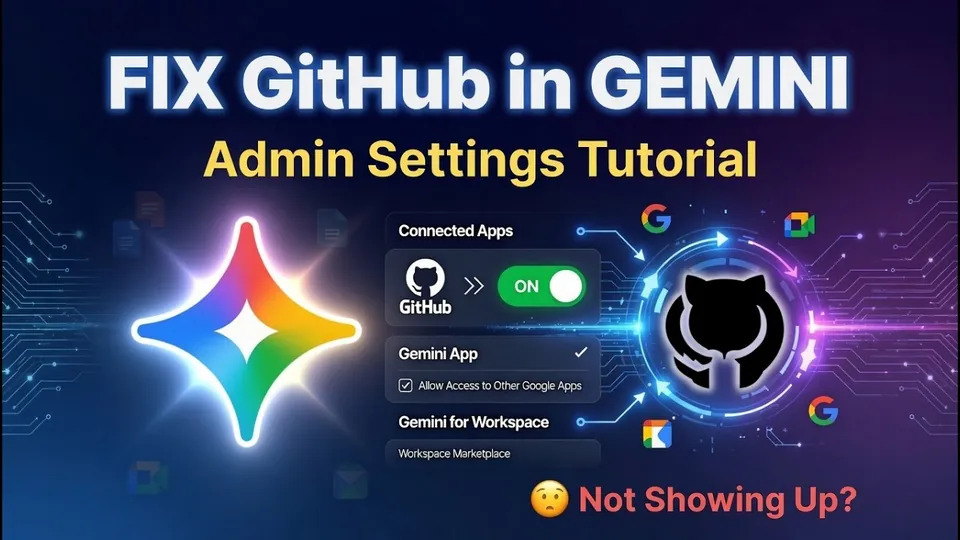
Prefer to watch? The full video is right here. 3:24 · Watch on YouTube
Step 1: Turn on the Gemini app and allow other Google apps
In the admin console, go to Generative AI on the left. That is where you will find Gemini app, Gemini Enterprise, Gemini for Workspace, NotebookLM and the rest of the Gemini feature settings.
Open Gemini app and first make sure it is turned on. Then go into its apps settings and find Other Google apps. Select it to allow access to other Google apps. That is the first step for connected apps to show up at all.
Step 2: Consider turning on Alpha Gemini features
In Gemini for Workspace, you can turn on Alpha Gemini features. I am not sure it is required for this fix, but it does not hurt, and you get to test new things earlier.
Be careful here. If you are not the person in charge of your admin console, they may not want you turning on alpha features without proper guidance, or outside the right organizational unit. Buyer beware.
Step 3: Fix the Marketplace allow list
If it is still not showing up, this is usually the culprit. In the admin console, go to Apps, then Google Workspace Marketplace apps settings, and open Manage access to apps.
If that setting only allows users to install and run allow-listed apps, or does not allow Marketplace apps at all, the integrations will not appear in Gemini. In fact, if the allow list is your problem, SynthID is the only thing that shows up in connected apps. You have two options.
Two ways to unblock Marketplace integrations
| Option | What to do |
|---|---|
| Allow any Marketplace app | Let users install and run any app from the Marketplace, if your security standards allow it |
| Allow just GitHub | Copy the GitHub integration's link from the Google Workspace Marketplace and add it manually to your allow list |
Follow your own organization's security guidelines either way.
Once that is done, refresh Gemini and GitHub will show up. As soon as I fixed it, HubSpot, Asana, GitHub, Mailchimp and Salesforce all appeared.
Bottom line
Missing connected apps in Gemini are almost always an admin settings issue, not a bug. Turn on the Gemini app and allow other Google apps, optionally turn on alpha features, and check the Marketplace allow list. If all you see is SynthID, start with the allow list.
Gear in this story
- GitHub for Gemini integration (Google Workspace Marketplace)workspace.google.com (opens in a new tab)
- Google Workspace Marketplace allow list settingadmin.google.com (opens in a new tab)
Some of these store links are affiliate links. If you buy through them, the channel may get a small commission at no extra cost to you. Affiliate disclosure
Related stories

Shadow IT on steroids: how to govern AI agents at work
Oct 7, 2026 · 7 min read

Your IT stack is bloated: how to simplify and secure it for 2026, with Promevo's Colin McCarthy
Dec 2, 2025 · 7 min read
What is Meta Muse? A week with Meta's new personal AI agent
Sep 23, 2026 · 6 min read
Jesse Nowlin
Founder of TABGEEKS, former IT Director and Google Developer Expert. I test networking and pro tech on real job sites, then write up what I find.
Join the community