

Home / Stories / AI at work
ChromeOS vs Windows: I timed setup from power button to browser
I raced two Chromebook Plus laptops against a brand new Dell XPS 13 on Snapdragon X Elite, timing each from first power-on to a working browser. The gap was bigger than even I expected.

Jesse Nowlin
Founder, TABGEEKS · · 4 min read
I'm going to let you in on one of the secrets to my success as an IT professional: Chromebooks. They've come a long way since the original Cr-48 debuted in 2010. I was fortunate enough to be sent one, and back then it didn't even have an offline mode. It was just a browser, and if you didn't have internet, you were out of luck.
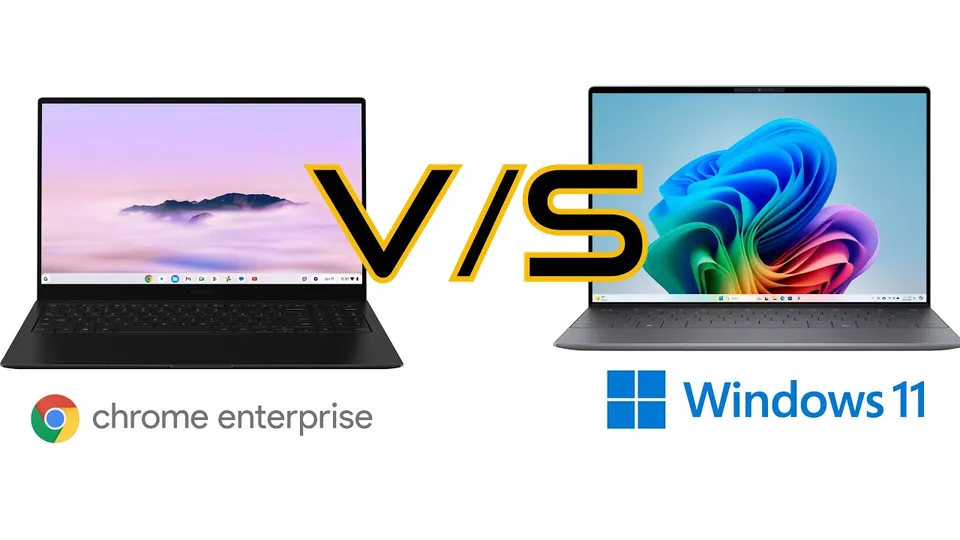
ChromeOS is a very lightweight, Linux-based operating system that doesn't need much hardware to run well. Put it side by side with Windows and you need much more powerful Windows hardware to get the same experience. So I put that to the test: two Chromebook Plus laptops against a brand new, never turned on Dell XPS 13, timed from totally new to logged in and ready to work.
Spoiler: the Chromebook was on the home screen in a few minutes. Windows took just shy of 30 minutes.
Prefer to watch? The full video is right here. 11:02 · Watch on YouTube
Jump to a section in the video
The contenders
On the ChromeOS side I had the Asus Chromebook Plus CX34 and the Acer Chromebook Plus 515. Chromebook Plus is Google's newer standard that sets minimum requirements so a Chromebook can handle modern AI processing. On the Windows side, the Dell XPS 13 is one of the new Copilot AI PCs, running a Qualcomm Snapdragon X Elite with 16 GB of RAM. It's a very powerful machine. I tried to make the test as equal as possible.
For disclosure: Google and Asus sent me the Chromebooks, unpaid, and I have to send them back. I bought the Dell XPS with my own money, since I didn't have a modern Windows laptop to test. I timed everything on my Pixel 9 Pro Fold, on gigabit fiber.
Chromebook setup
Wi-Fi, then a "for work" setup without enrolling the device. It checked for updates and estimated about 10 minutes, but with gigabit fiber it was already at 20% almost immediately, and you can skip and be reminded later, which I did.
At about a minute 30 on the timer I was signing in and doing two-step verification. Then I accepted the terms, let it sync, skipped the PIN and landed on the home screen. Open Chrome, go to Google.com, stop the clock.
Windows setup
Then the Dell. Man, this is a nice computer. I'm half tempted to put ChromeOS on it. But 30 seconds in, I wasn't even at a login screen. It took long enough that I went and got a coffee and came back, and it was still working.
Then came the Dell registration and the upsells. Skip, skip, decline, continue without data. It was just shy of 30 minutes before I had a working browser. And even though I skipped and declined everything, it still somehow signed me up for a McAfee subscription I don't want. Now I have to cancel that, uninstall the bloatware and finally install what I actually want, which honestly is Chrome.
“Just shy of 30 minutes. Are you kidding me, Microsoft? Really?”
Updates are the bigger problem
Setup is a one-time pain. Updates are forever. Windows updates take a long time, and yes, you can push them off, but then you're not getting the updates, and eventually you're forced to do it. In my experience it always happens right before the big presentation for the boss, the project you need to start now, or a flight where you can't use your laptop the whole time.
ChromeOS updates install in the background. When it's done, you restart, the computer comes back as fast as a normal reboot, and you're ready to go. No forcing it on you at the wrong moment.
Management and price
For admins, ChromeOS is also easy to manage from the Google Workspace admin panel, either free with the basic settings or with the paid Chrome Enterprise upgrade for a lot more enterprise features. Both are excellent options for business.
Price matters too. The XPS normally retails at $1,500, and I got it for $1,000. Chromebooks usually cost significantly less, especially the models I tested. Some run $500 or $700, and even the highest tier models from HP are generally around $1,000. Samsung just released a very thin Galaxy Chromebook Plus, around $700 or $750, that I'd almost call on par with the XPS.
If you have Windows apps you can't drop, Google just bought Cameyo, which lets you virtualize Windows applications and run them on a Chromebook as if it were a Windows machine.
Bottom line
This comes down to what your users need. Some will demand Windows, and if so, the Dell XPS is a phenomenal option. But for most business users, Chromebooks are faster to set up, simpler to update and easier to manage. In my experience they've been a big win for users and a superpower for admins like me.
Gear in this story
- Asus Chromebook Plus CX34
- Acer Chromebook Plus 515
- Dell XPS 13 (Snapdragon X Elite)
Ubiquiti Store links are affiliate links. If you buy through them, the channel may get a small commission at no extra cost to you. Affiliate disclosure
Related stories

Shadow IT on steroids: how to govern AI agents at work
Oct 7, 2026 · 7 min read

Your IT stack is bloated: how to simplify and secure it for 2026, with Promevo's Colin McCarthy
Dec 2, 2025 · 7 min read

What is Meta Muse? A week with Meta's new personal AI agent
Sep 23, 2026 · 6 min read
Jesse Nowlin
Founder of TABGEEKS, former IT Director and Google Developer Expert. I test networking and pro tech on real job sites, then write up what I find.
Join the community